Guides for building owners
How to review, publish, and invite the team
The Elementplan is contract-relevant. You need a clear release strategy so drafts never look official
Published
Simon Dilhas (Cofounder abstract & BIM Pirate)
Start Free NowThe Elementplan is contract-relevant. Once it is published, planners, modelers, and checkers treat it as the ordered data requirements: what must be in the model, why, and from which phase. A half-finished draft in the viewer looks official even when it is not.
The freeze happens twice. A template release is the frozen source for new projects. A project release is the frozen source for the frontend. Creating the repository is not enough. Live Data is not enough. Only Publish Version on the project makes it appear in the viewer.
That is why you need a clear release strategy. Work stays on a private draft. An admin reviews it onto Live Data. Only Publish Version updates what the viewer and IDS checks use. Then you invite the people who may edit drafts and the people who may download and check against the official plan.
Submit a draft
- Save all edits.
- Click Submit for review.
- Write a short title (what changed).
- Confirm Submit for review.
Approve (organization admin)
- Open Pending Reviews.
- Open the request, check the files/diff.
- Click Approve & Apply.
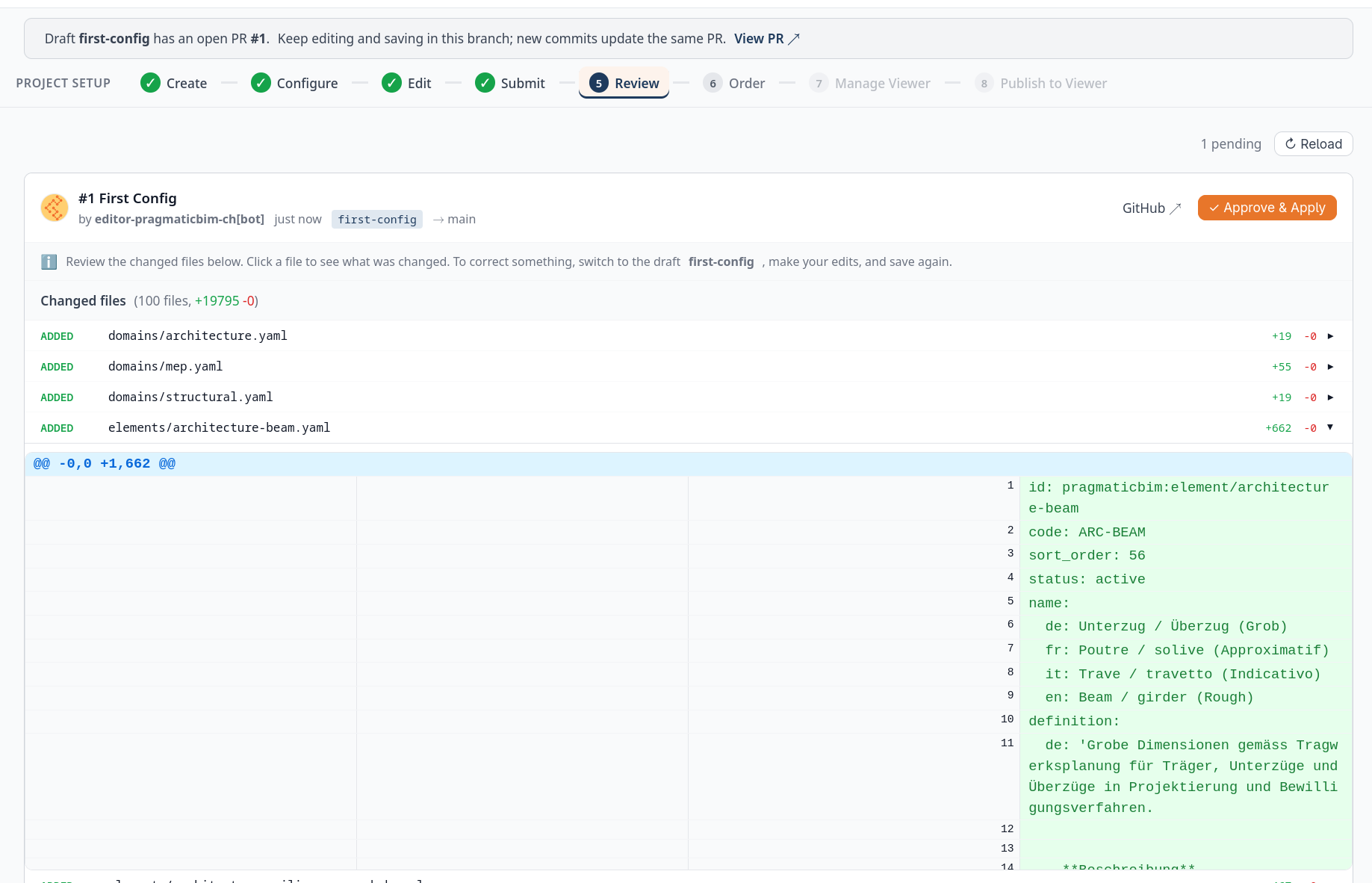
Switch the draft dropdown to Live Data to confirm the approved content. Live Data is the approved plan. It is still not what modelers see until you publish a version.
Publish a version
Publishing is the release. It builds the contract artifacts (IDS, Excel, reports, viewer JSON) from main and uploads them. Modelers still see the previous published version until this finishes.
- Open Publish Version.
- Set a Version tag (for example
v1.0.0) and a title. - Optionally add release notes or mark a pre-release.
- Click Publish Version.
Invite people
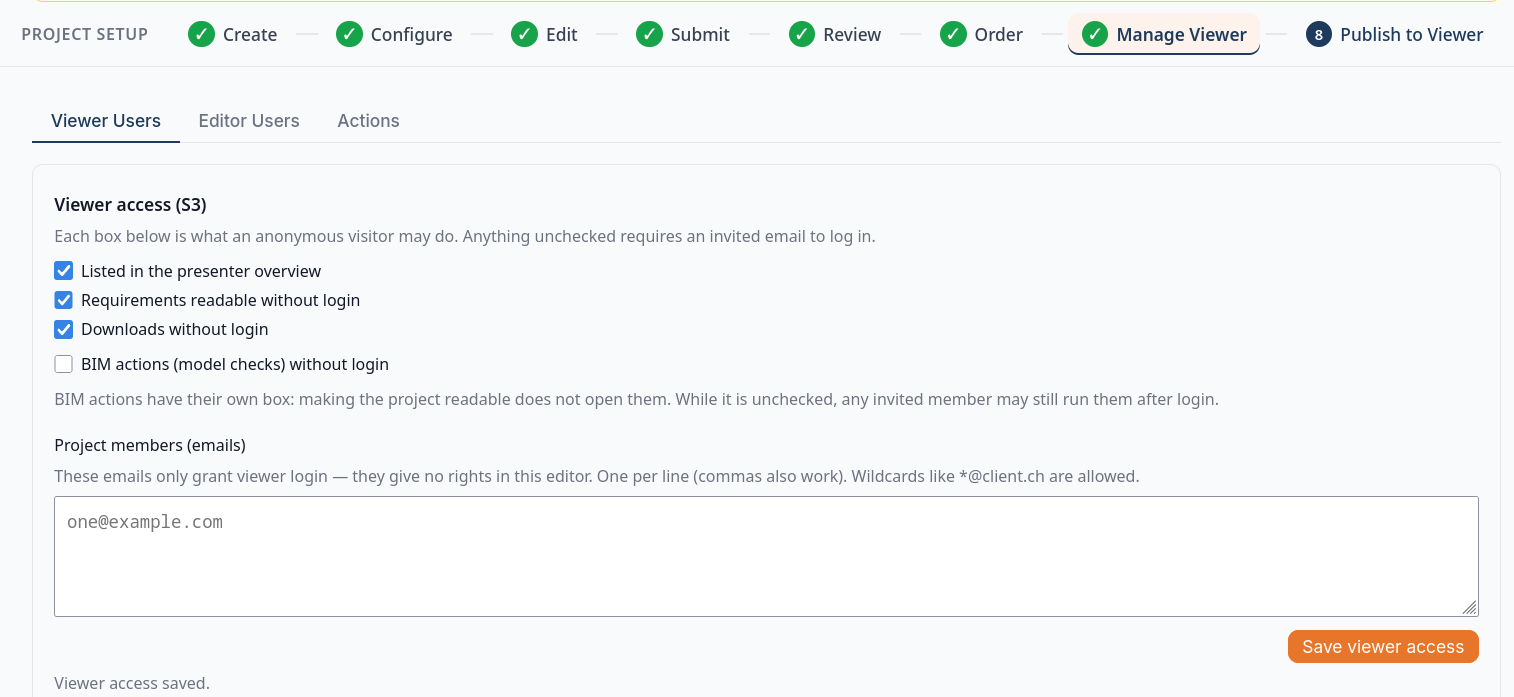
Invite after you know who may change the draft and who may use the published plan. Open Settings → Users (or ☰ → Settings):
- GitHub collaborators - usernames who can edit drafts (one per line). Saving syncs to GitHub.
- Project members / Project admins - emails for the viewer (downloads and actions). New projects may already include your organization’s standard list.
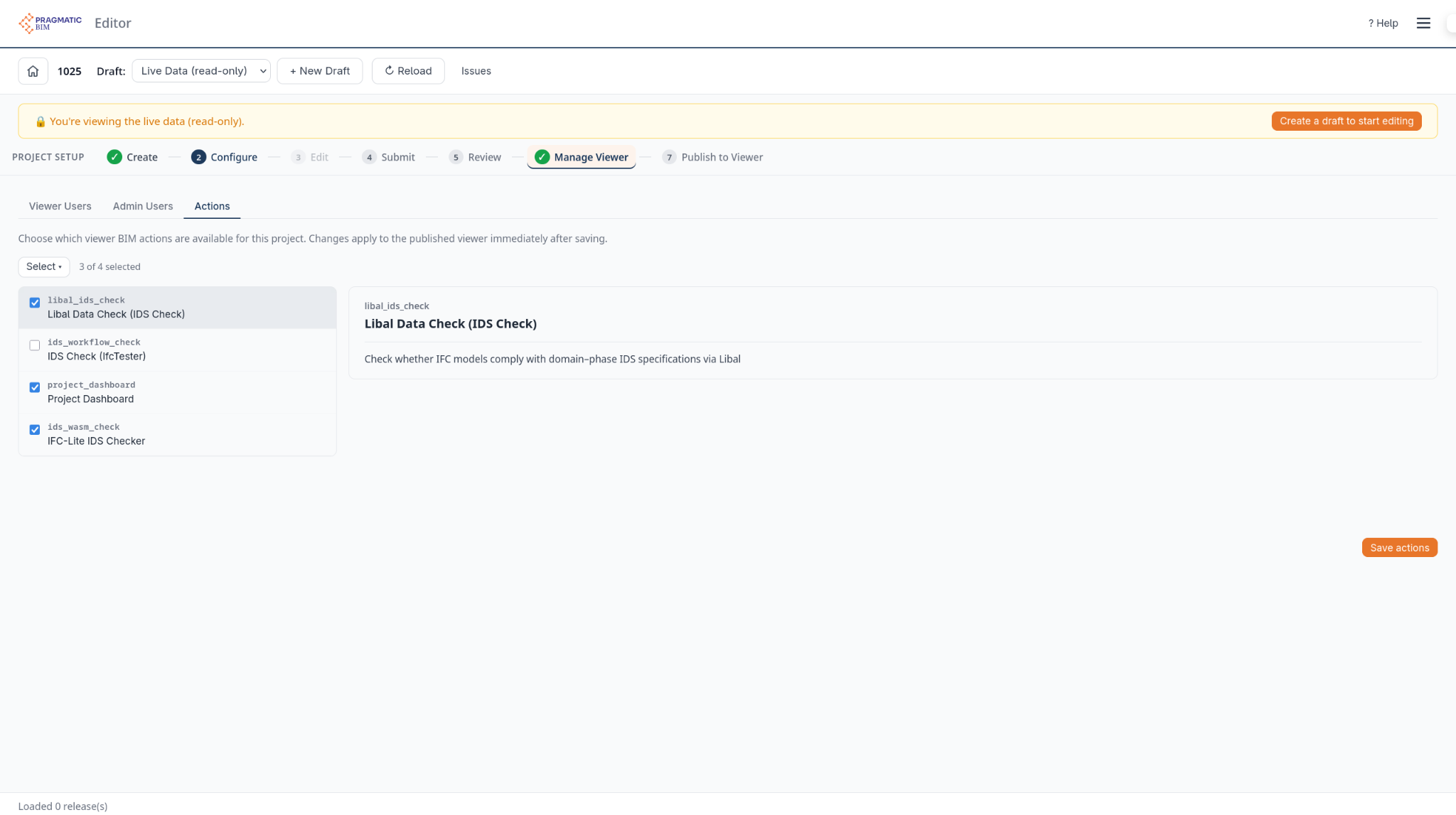
Under Settings → Actions, choose which viewer checks are on (IDS Check is on by default).