
Guides for building owners
How to import other planners’ requirements (IDS)
Import a buildingSMART IDS into the project draft, compare it to what you already have, and merge
Published
Simon Dilhas (Cofounder abstract & BIM Pirate)
Start Free NowWhen architecture, HVAC, or a specialist planner already has a buildingSMART IDS file, you do not retype it. Import it into the project draft, compare it to what you already have, and merge.
This is different from Pending Reviews, which merges your draft onto Live Data.
Before you start
- Open the project (not only the master) on a draft.
- Have a single
.ids(or IDS XML) file ready.
Import
- Open the project draft.
- Open the menu (☰) and click Import IDS.
- Choose the file.
The editor parses the IDS and matches specifications by IFC entity and applicability.
Review matches
The dialog shows:
- Matched - already in your plan. For each attribute: add the imported one, skip it, or (where both exist) keep yours.
- New - no match. Add as a new element or skip.
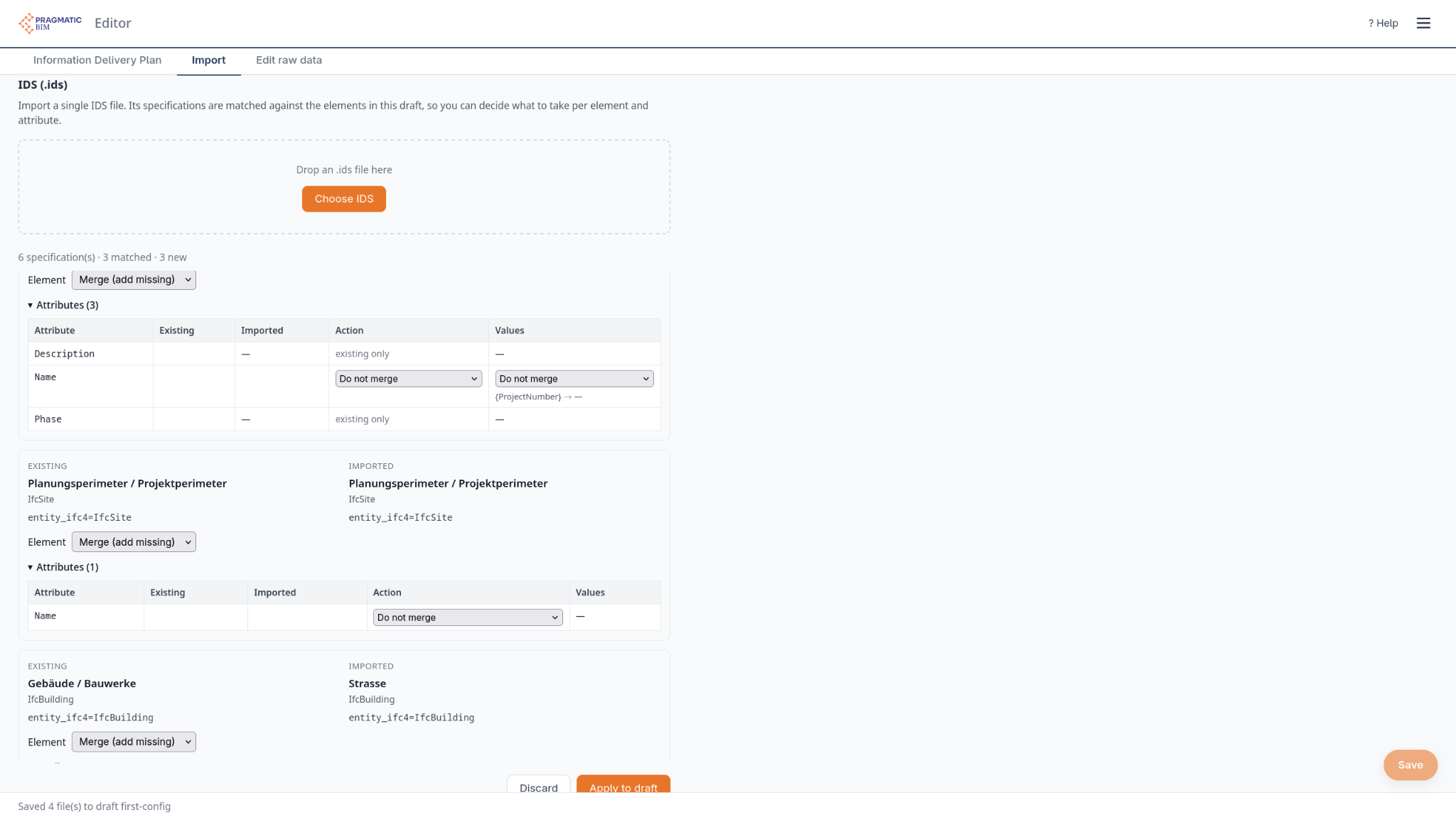
Check warnings at the top if the file could only be partly mapped.
Apply
Click Apply to draft. The merge is only in your draft until you Save (if prompted), Submit for review, and an admin approves.
After import
- Spot-check Edit raw data → Elements for the imported objects.
- Update the Information Delivery Plan so new elements sit in the right model.
- Publish Version when modelers should check against the combined rules.
You can also Export IDS from the same menu (domain–phase, or use-case / model splits) to send your requirements to another tool.