
Guides for building owners
How to create and maintain a master template
Keep the shared catalogue stable and versioned. Projects copy a published master release, never unpublished draft work
Published
Simon Dilhas (Cofounder abstract & BIM Pirate)
Start Free NowThe master template is the shared catalogue your projects copy from. Keep it stable and versioned. Projects are always created from a published master release, never from unpublished draft work.
Most organizations already have a master (for example Community Standard). This guide is for people who maintain that catalogue - or who need a new one for their organization.
On the Planner plan you can add up to 3 organization-specific master templates; Full Enterprise has unlimited own templates. In pragmaticBIM, start from the Community Standard and add your requirements in the editor or by importing an IDS.
Before you start
- You are an organization admin in the editor.
- You can sign in with GitHub.
- For a brand-new master (new organization catalogue), pragmaticBIM registers the GitHub repository first. You then maintain it in the editor as below.
Open the master
- Open the Elementplan editor and sign in with GitHub.
- Select your organization.
- Under Templates, open the master (marked as a template).

You are now in template mode: QA, Goals, Workflows, Domains, Models, Elements, Values, Translations.
Create a draft
Live Data is read-only. Click + New Draft, give it a short name (for example update-fire-usecases), and click Create draft.
Build the catalogue
Work through the tabs that match what you are changing:
- Goals - add project goals. Expand a goal to edit Ausprägungen (ordered levels). On each level, assign only the new workflows that become active at that step. Higher levels automatically include lower ones.
- Workflows - use cases: code, name, description, domains, related goals.
- Domains and Models - disciplines and Teilmodelle (delivery files) under them.
- Elements - IFC entity, definition, attributes (name, Pset, datatype, phases, use cases, allowed values).
- Values - controlled lists referenced by attributes.
- QA - coverage overview before you submit.
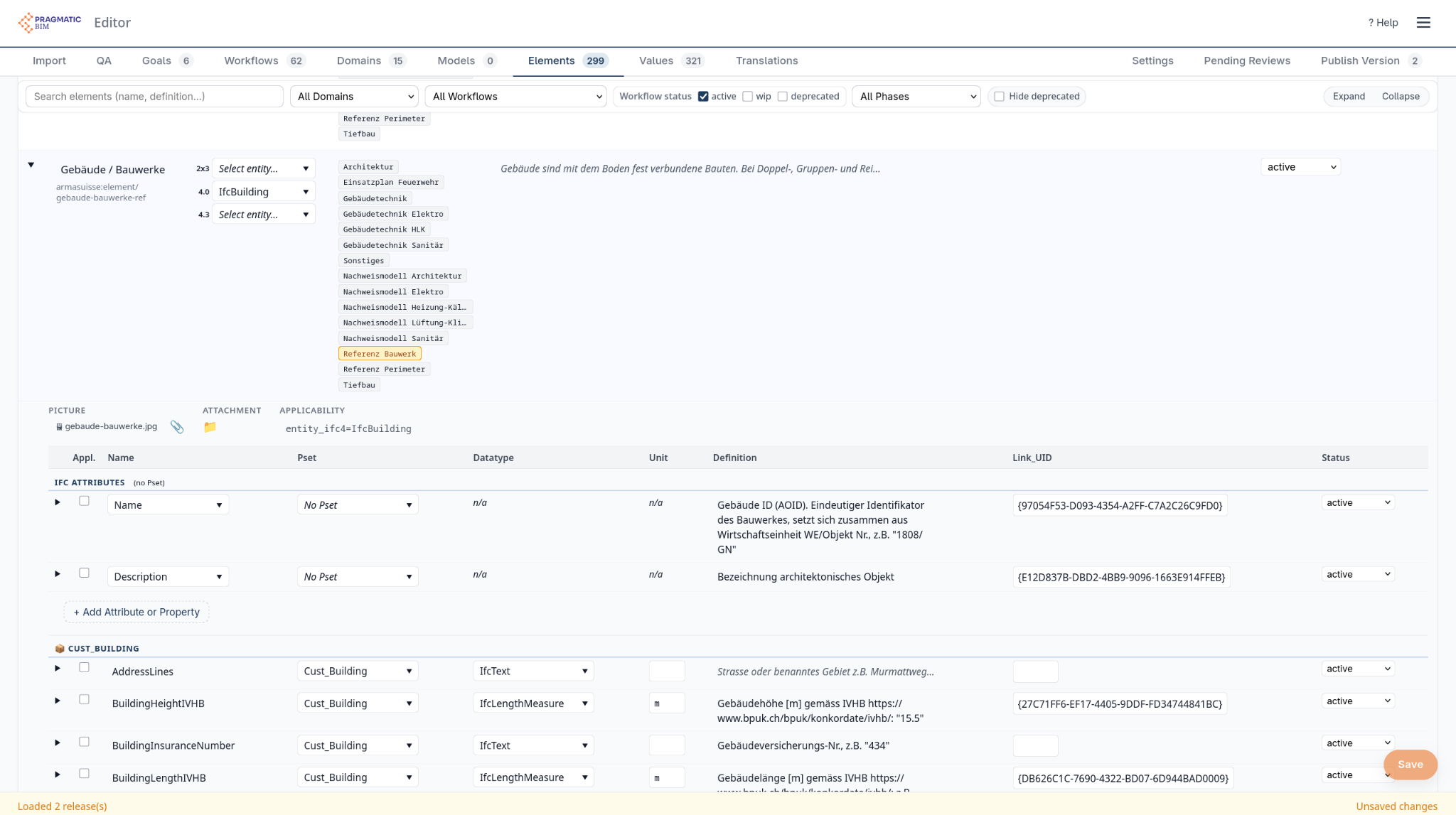
Save often with Save. This only writes the draft.
Submit, approve, publish
- Click Submit for review and describe the change in one line.
- An organization admin opens Pending Reviews, checks the diff, and clicks Approve & Apply.
- Open Publish Version, set a tag such as
v1.1.0, and click Publish Version.
Until a release exists, + New project cannot pick a master version.
Publishing freezes the template as a Published Release. Drafts are never a copy source. This is the first freeze. Each project later gets its own second freeze when you publish that project for the viewer.
Good practice
- One topic per draft (easier to review and revert).
- Treat the master as a product: increment versions when the catalogue changes.
- Do not put project-specific model assignments in the master; those belong in each project’s Information Delivery Plan.