
Guides for building owners
How to check IFC models with Actions
Actions compare an uploaded IFC against the published IDS for this project
Published
Simon Dilhas (Cofounder abstract & BIM Pirate)
View exampleActions compare an uploaded IFC against the published IDS for this project.
Before you start
- A version of the project is published (otherwise there is no IDS to check against).
- You know which IDS slice you need: by domain, use case (workflow), or model.
- If downloads/actions are not public: you are on the project email list and can complete the login code.
- Organization admin: Settings → Actions in the editor - IDS Check (IfcTester) on.
Run an IDS check (IfcTester)
- In the viewer, open the project → Actions / Aktionen.
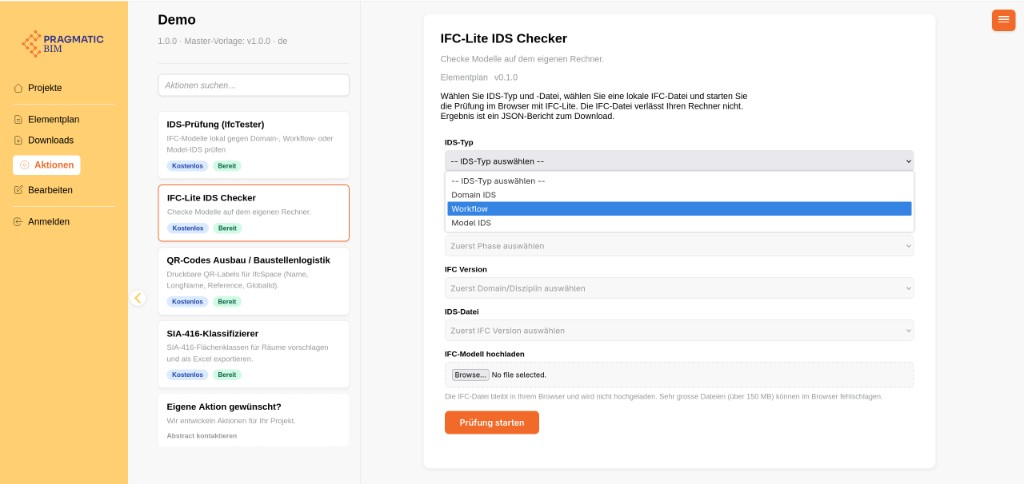
- Select IDS Check (IfcTester).
- Choose the IDS type (domain, workflow, or model).
- Narrow the file step by step (domain, use case, model - depending on type).
- Upload your IFC.
- Run the check.
You get an HTML report and a JSON summary: passed / failed specifications.
If the check fails
Typical causes: wrong model file, wrong phase, or the Information Delivery Plan does not match how the team splits models. Fix the IFC or adjust the plan in the editor (draft → review → publish) and check again against the new version.
Other Actions
The same Actions menu also opens models in partner tools:
- IFC Lite editor - open-source browser toolkit to view, query, and edit IFC. IDS checks stay on your machine.
- View models with Sortdesk - free browser IFC viewer with section, measure, and property tools. No account required.