
Guides for building owners
How pragmaticBIM works
A living, versioned project plan - what information is needed, why, in which model, and from which phase
Published
Simon Dilhas (Cofounder abstract & BIM Pirate)
Start Free NowThe web application on pragmaticBIM.ch turns the pragmaticBIM Reference and the Elementplan into a living, versioned project plan: what information is needed, why, in which model, and from which phase. Designers configure a project from the Reference data or a shared master template, publish it as a project-specific template, and modellers check IFC files against the same rules.
The loop
- Freeze the template - define the Reference data or shared catalogue and publish a release. Only that frozen snapshot can seed projects.
- Create and configure a project - from that release, an admin creates a new GitHub repository. Then pick project goals and/or use cases so only this building's requirements remain.
- Freeze the project - publish the configured project as its own release. Only then does it appear in the viewer (the frontend).
The idea
Most projects start from the same foundations of good practice. They differ in ambition (goals), in which use cases they actually run, and in how models are split (architecture vs HVAC, room model vs façade). The web application takes the Reference data of the pragmaticBIM Reference (or a custom master template), freezes it as a published release, and copies that release into a project. You then slim the requirements down to the Elementplan and assign them to this building.
Two places to work
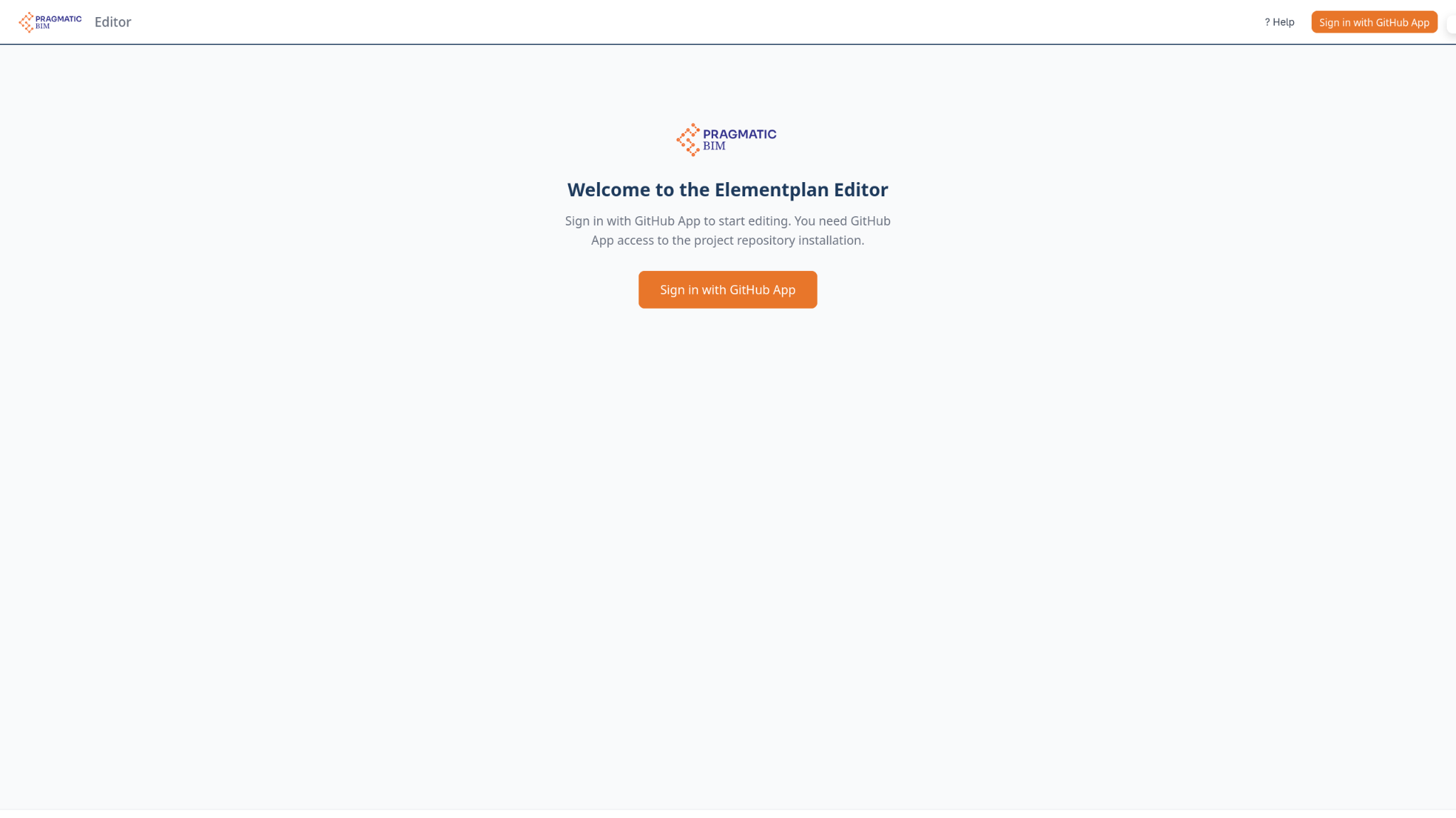
Editor - BIM coordinators and organization admins. Sign in with GitHub. This is where you author requirements, merge other planners’ IDS files, and publish versions.
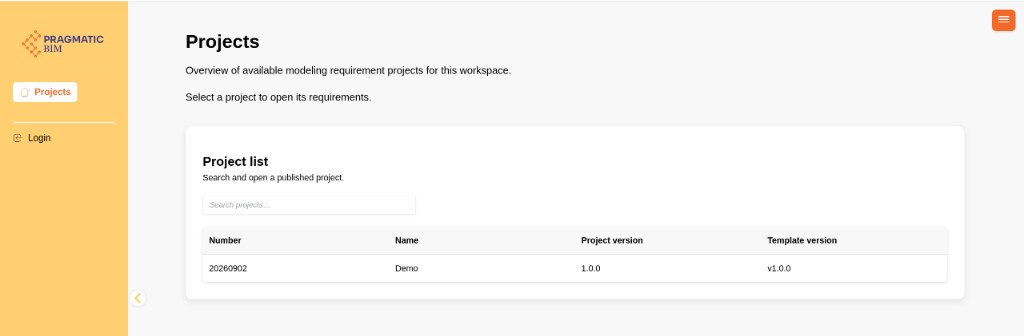
Viewer - everyone who needs the published plan. Browse requirements without login. Downloads and model checks may ask for an email code.
From master to checked model
- Master template - a shared GitHub catalogue: project goals, use cases (workflows), domains, models (Teilmodelle), elements, attributes, and allowed values.
- Copy into a project - an admin creates a project from a published template release. Each project is its own GitHub repository.
- Configure - pick goal levels and/or use cases so only the relevant requirements stay in the project.
- Information Delivery Plan - decide in which model (and phase) each element’s information must appear.
- Merge other planners - import buildingSMART IDS files into a draft and keep, skip, or add requirements.
- Review and publish - drafts never change the live plan until an admin approves them. Publishing this project as a release builds IDS, Excel, and reports for the viewer.
- Check - in the viewer, run Actions: upload an IFC and validate it against the published IDS.
What the words mean
| Term | Meaning |
|---|---|
| Project goal | High-level objective (e.g. fit-out standard, sustainability) with ordered sensitivity levels (Ausprägungen). A higher level includes everything below it. |
| Workflow / use case | A concrete BIM task (e.g. areas and volumes, cost, fire). Attributes are required for use cases. |
| Domain | Discipline or responsibility (architecture, HVAC, electrical). |
| Model (Teilmodell) | A delivery unit under a domain (room model, façade model). This is the file people actually model in. |
| Element | A building object (wall, door, space) with IFC entity and attributes. |
| IDS | buildingSMART Information Delivery Specification - the machine-readable check file. |
Live data vs drafts
In the editor, Live Data is the approved plan (read-only). You edit on a draft, Save, then Submit for review. An organization admin uses Pending Reviews → Approve & Apply. Only then does Publish Version update what the viewer shows.
Creating a project repository is not enough. Live Data is not enough. The viewer only sees published project releases - the same freeze you already used on the template, now for the frontend.
Who can do what
- Organization admin - create projects, approve reviews, publish, manage users and viewer actions.
- Editor (GitHub collaborator) - work on drafts and submit them for review.
- Viewer member - email on the project access list; downloads and actions after a login code.